
[04] - Inventor Content Library Setup for Fasteners
1. Copy “Inventor Content Center Libraries” files into your C drive from “G:\Robotics\09 - Templates\Inventor Content Center Libraries”.
2. In Inventor go to File > Options > Content Center and browse for “Inventor Content Center Libraries” and select it. Apply Changes
3. In “Place from Content Center”, press the filter but and then Add/Edit Filters.
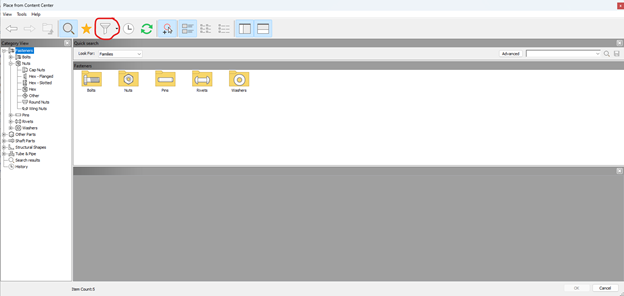
4. Add a new Filter Group named Silver Hills. Select only Silver Hills and deselect every other Standard and Manufacturer. Click Apply and exit.
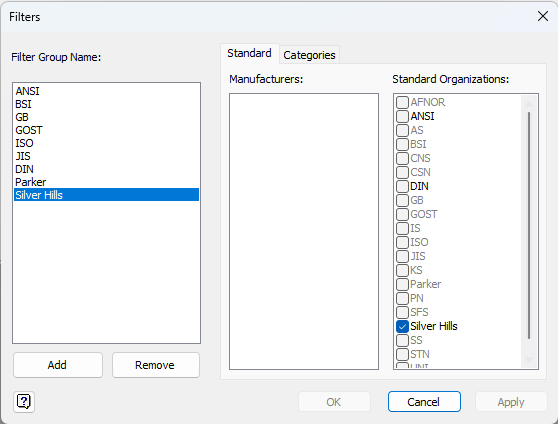
Now when using “Place from Content Center” select the Silver Hills filter to see only the Silver Hills library.
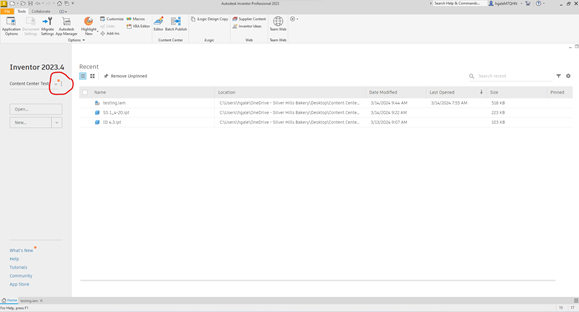
5. If you are working on an old project and would like the updated Content Center, click on the three dots next to Project Selection in Inventor Home and click Settings
6. Click Configure Content Center Libraries
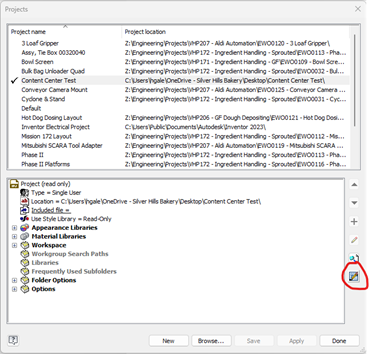
7. Select Silver Hills and click OK.
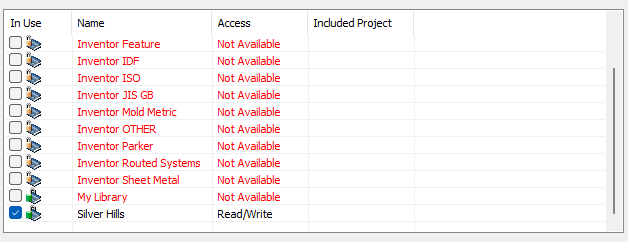
The default project has Silver Hills selected automatically.