K-ROSET First Time Setup
After installing K-ROSET for the first time, you will need a USB License Key. If K-ROSET does not recognize your license and continues launching in the Lite version, and the red led on the USB does not stay on, then you will need to download drivers for the USB Key. The drivers are available in "G:\Robotics\05 - Software\Sentinel_LDK_Run-time_setup.zip". After installing the drivers, K-ROSET should be able to recognize your key and open in the full version.
To make sure K-ROSET does not unexpectedly crash, make a project folder on your computer somewhere it will not sync to a remote drive. Mine is set to "C:\MyKHlibraries". Save your projects to this folder.
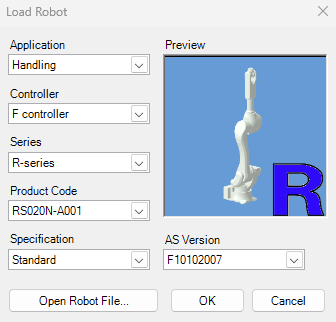
When you are ready to add a robot to your layout, right click on your project, and go to Add > Robot and make sure the product code is RS020N. Hit OK and you should be able to see your robot in the 3D model space.
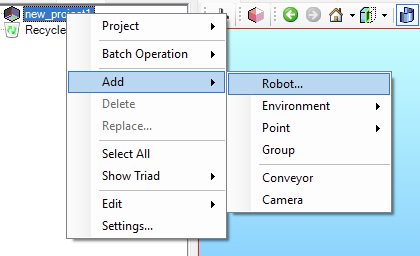
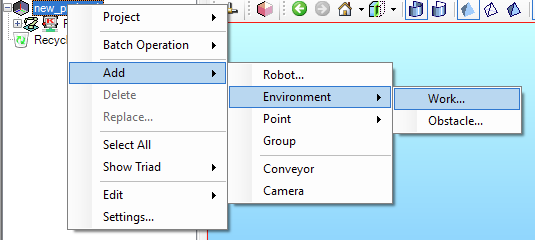
If you need to add other components to your model space, such as a conveyor, pans, or bread, add a work piece by clicking through Add > Environment > Work. Note that the other components you are adding need to be of file type STL and I recommend storing them under your project MODEL Folder. For example, STLs in my "new_project1" would be under "C:\MyKHlibraries\Projects\new_project1\MODEL"
Important: In my experience, K-ROSET has memory leaks when dealing with large size STL files. These memory leaks will force your K-ROSET to crash without giving you the option to save your work. I have has success dealing with a 3.95 MB stl, however I experienced crashes with a 9 MB stl. I used the following tool to reduce the size of my stl file.
https://myminifactory.github.io/Fast-Quadric-Mesh-Simplification/
You can also reduce your stl file size when exporting as STL from Inventor, however even selecting the low resolution option can result in a file size too large for K-ROSET. I am also unaware if my file size limitations are due to the processing and graphics rendering abilities of my computer or whether this is a constant across all K-ROSET installations.
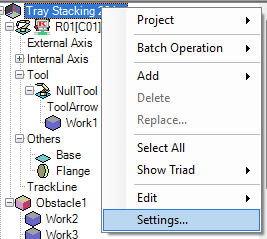
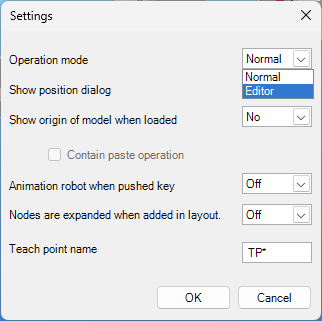
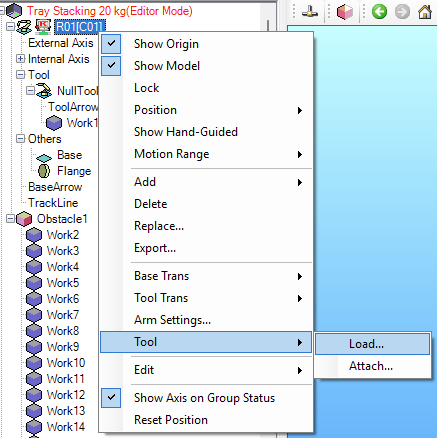
To add a tool to the robot, we first need to enter editor mode. Go to the project settings and change the operation mode to editor. Then, a tool can be added to the robot. Make sure to go back to Normal operation mode after adding the tool.
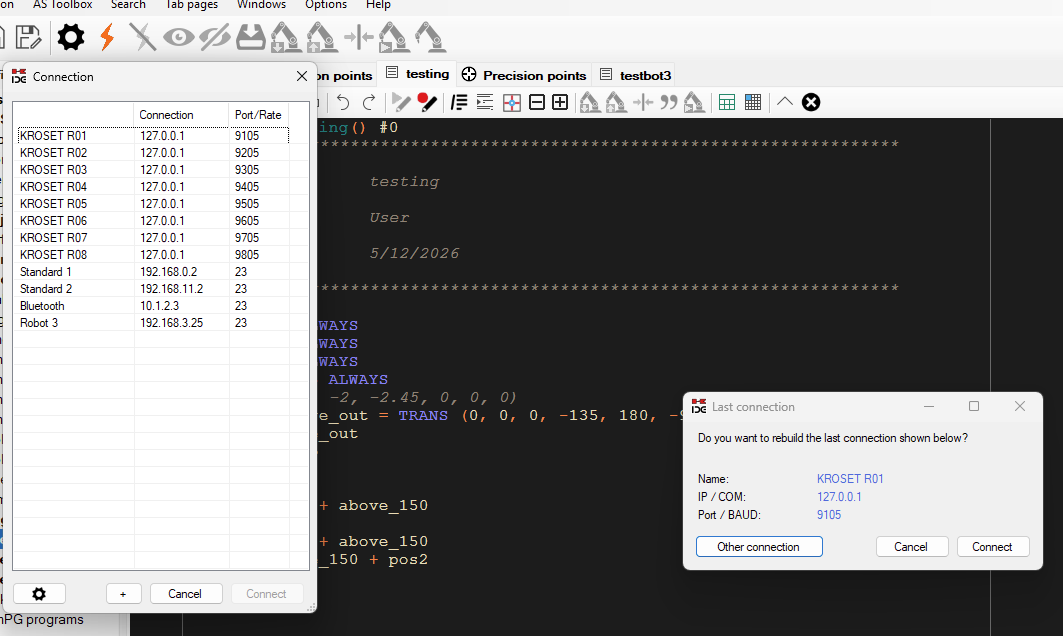
When you are ready to connect K-IDE to K-ROSET, select the KROSET R01 for your first robot. If you have multiple robots in your K-ROSET project, select a different KROSET robot here. Hit connect and send AS File to robot.
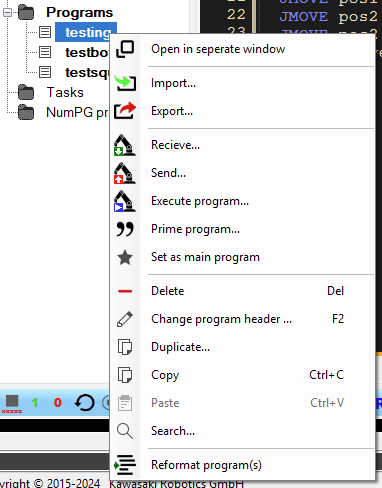
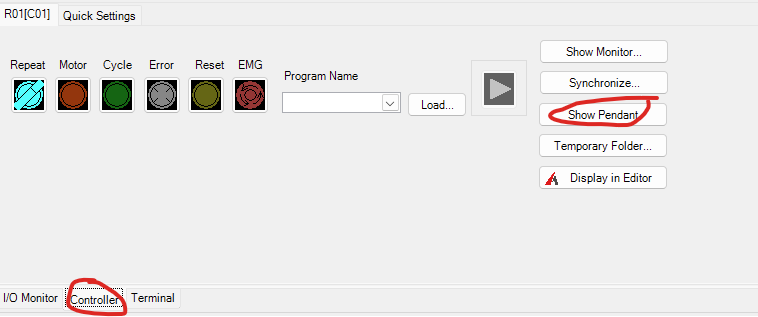
When you are ready to run a program, in K-IDE, right click the program and hit Execute Program. You can also Show Pendant in K-ROSET if you need to use the pendant.
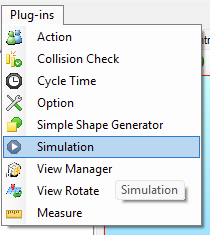
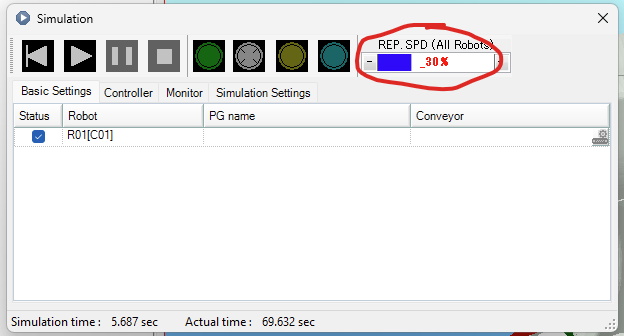
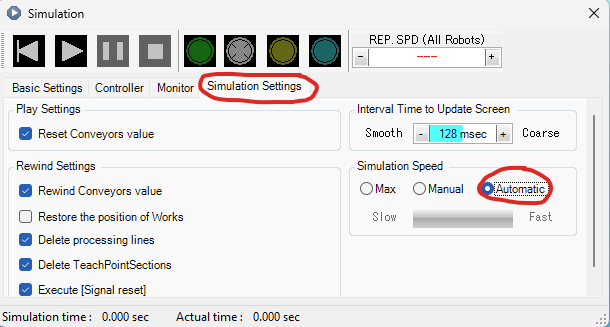
To change the speed the simulation is running at, go to the Plug-ins > Simulation and change the Simulation Settings > Simulation Speed to Automatic or Manual. You can also change the Rep.SPD, however this is the same setting as on the pendant.