
TwinCAT Git Integration
Setup
Under GIT > Settings
Input your GIT credentials here and make note of the location for your repos. I recommend you pin it in your File Explorer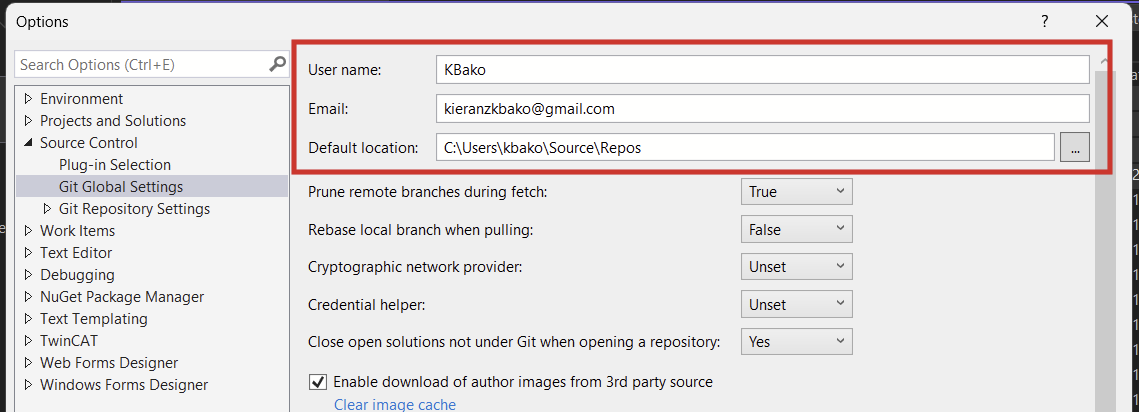
Ensure these settings are as shown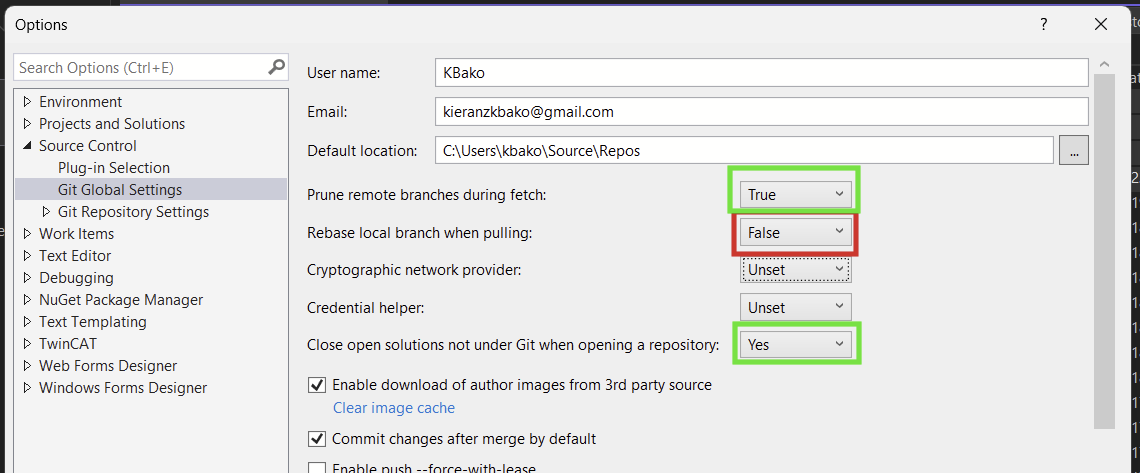
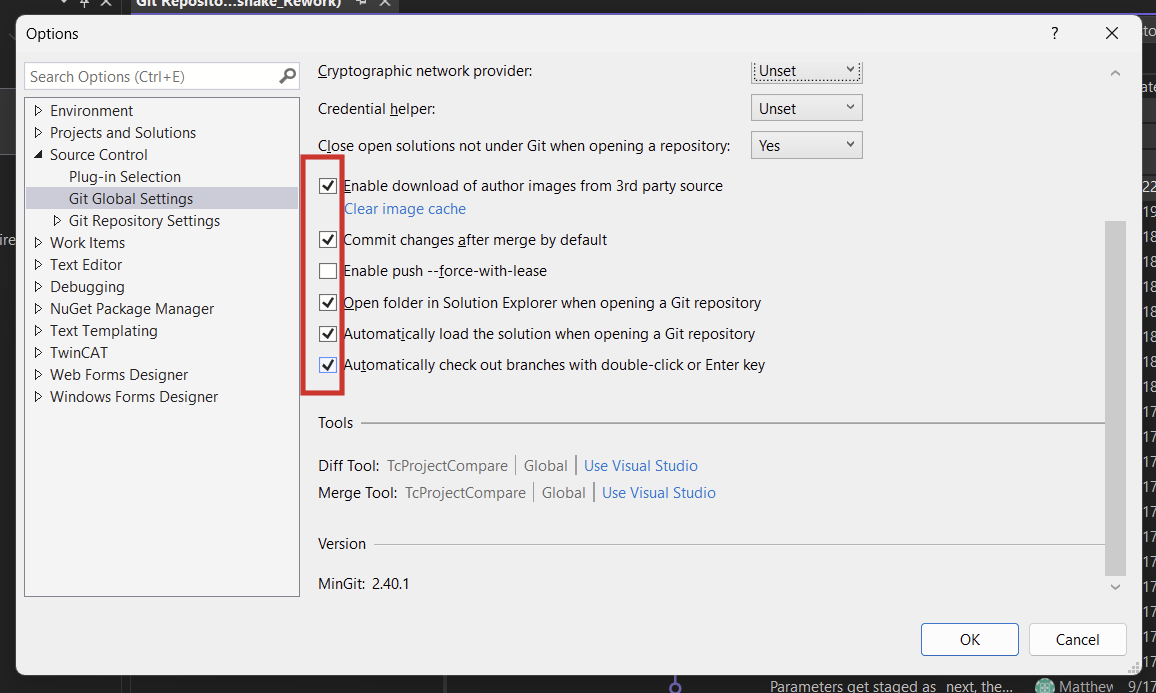
Ensure these boxes are checked off
Under Git Repository Settings, if you need to change the settings for a specific repo
Set the following ( with your name and email)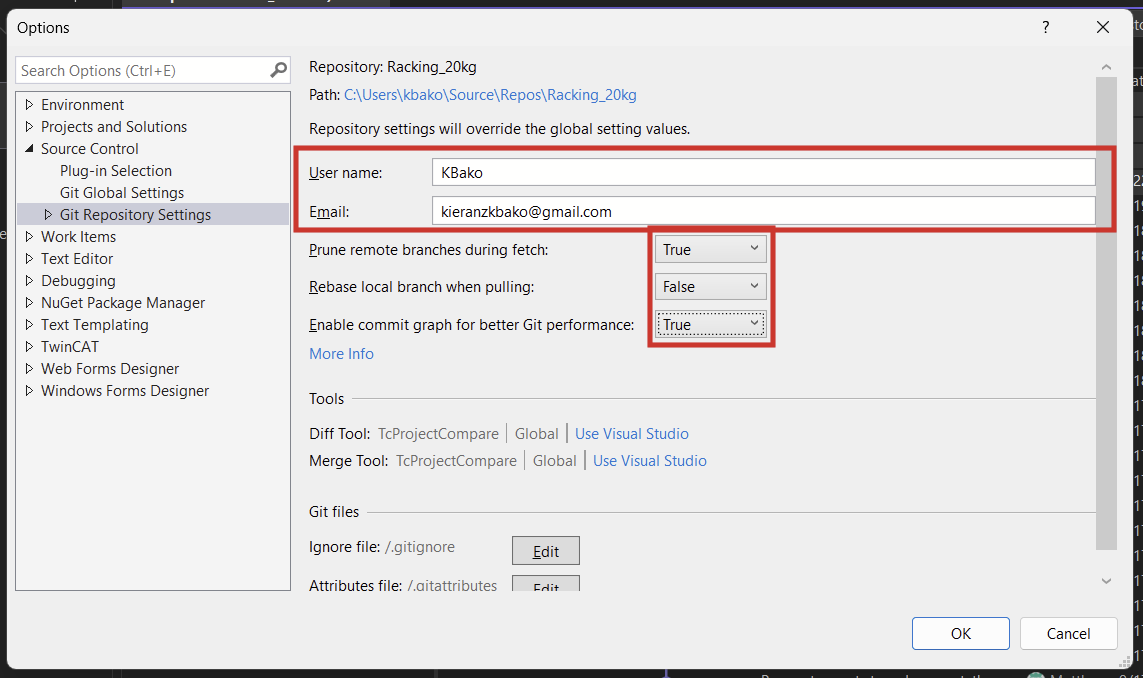
Instructions on how to set the compare tool for Git (diff checking) can be found here: Beckhoff Information System - English
Cloning
Make sure you have a git account and are added to the SilverHills Organization (Ask Matt or Kieran)
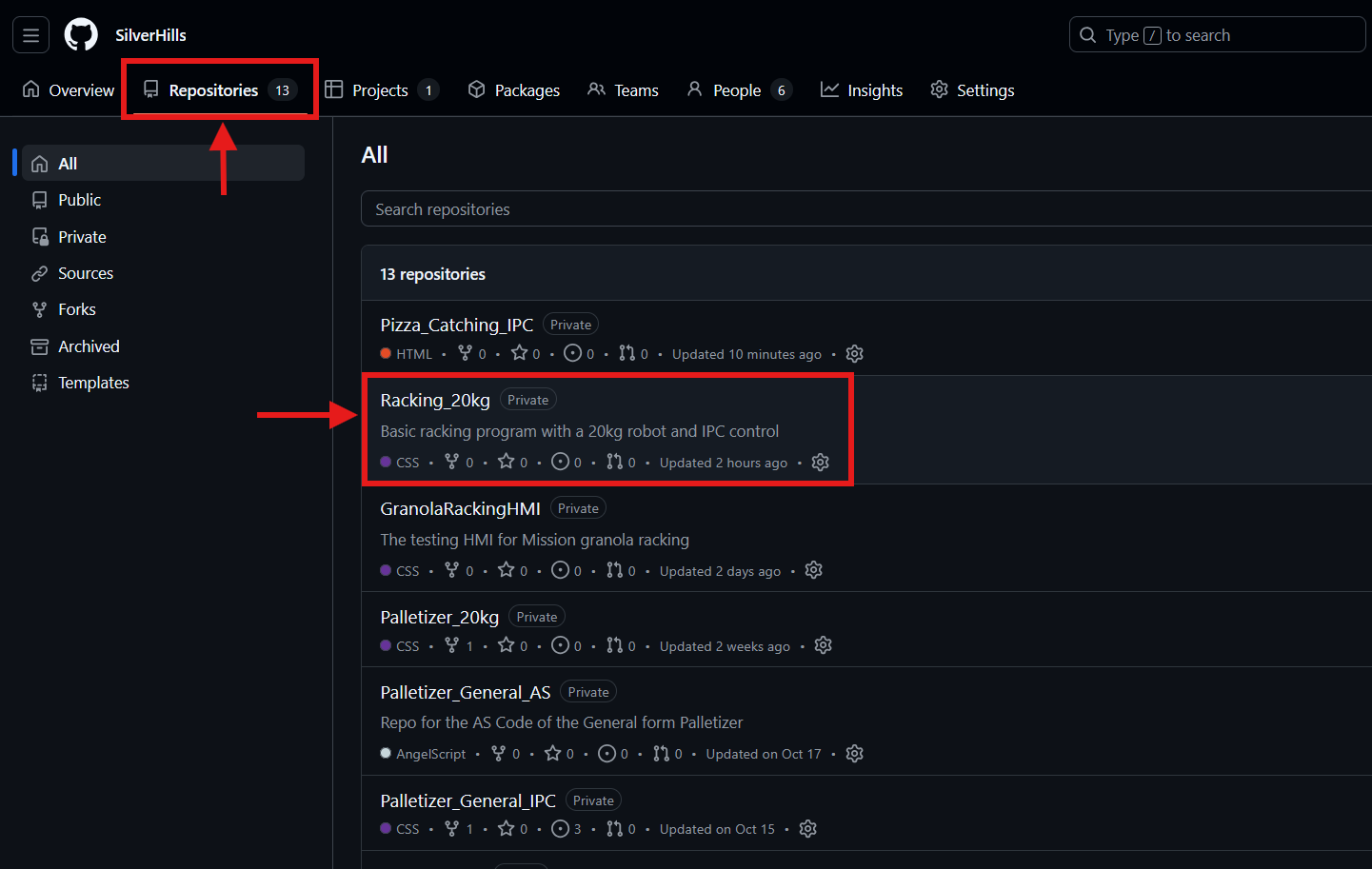
Copy the link to the repo
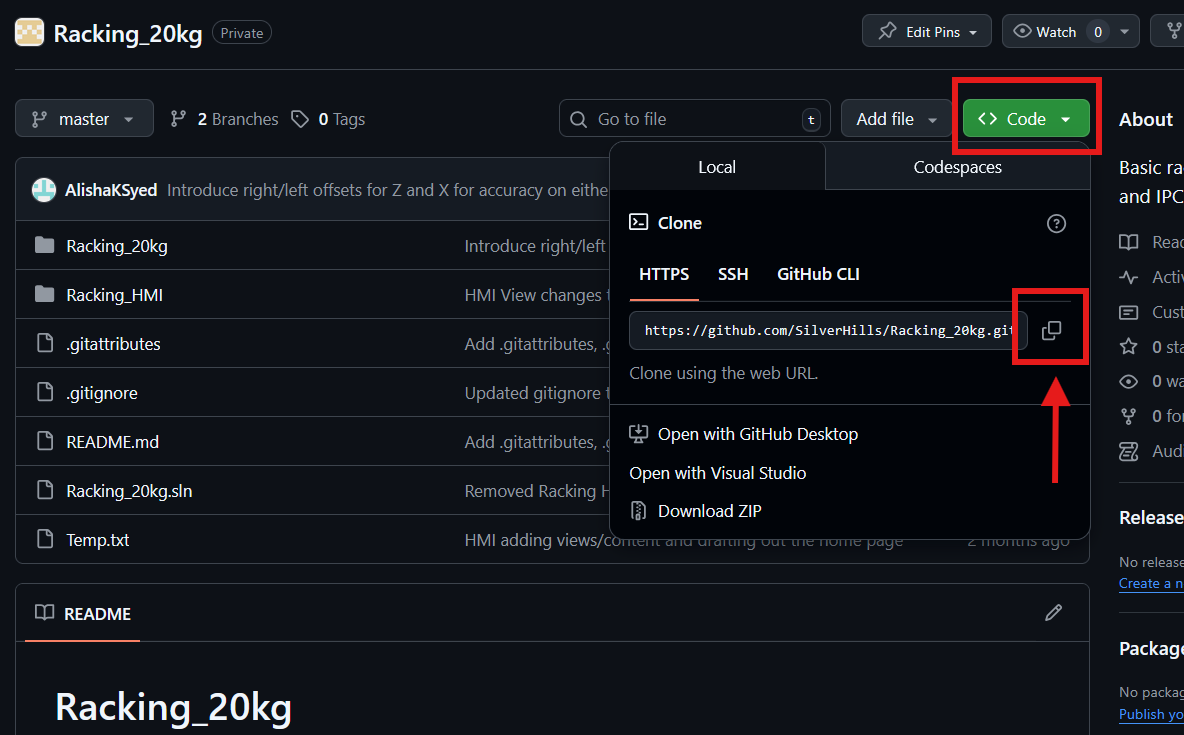
In the Path, paste the link that you copied from github.
Leave the Repository location to its default path. TwinCAT git works best the closest to C: as possible.
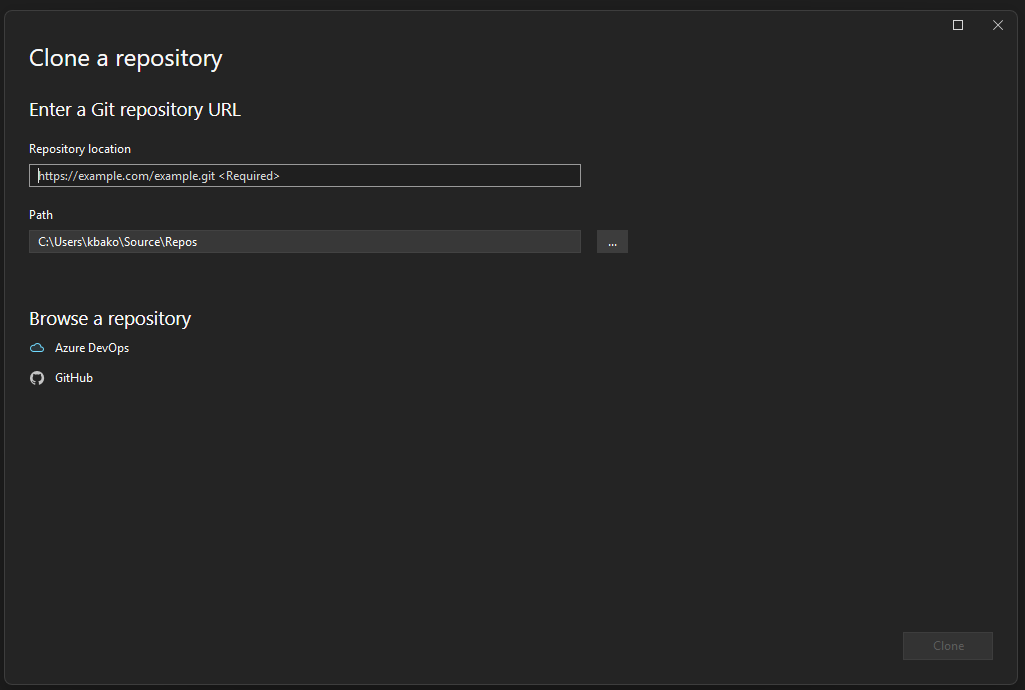
Click Clone
Your repo will open.
Usage
Key Concepts
RepositoryRepository: A folder or location in which the history of the contents are tacked.
Local Repo: The repo that exists on the device you are currently using.
Remote Repo: Repos that exist external to your device (Most of the time this is Github)
It's important to understand that there is no functional difference between a local and remote repo. There is nothing special about the repo that exists on Github. It is pure convention that we agree that it is the "master" repo that all others act on, but it could just as easily by any other computer, or a local server.
Change: A difference that git detects between the code you are working on and the code in your local repo. As you code, changes will accumulate.
Stage: Selecting a file or part of a file as to be part of a commit that has not yet happened.
Commit: The writing of staged changes to the history of your local repo. Each commit has an associated comment that the user writes to describe the changes that are contained.
Fetch: The retrieval of a list of all commits that are present on remote repos but not your local repo. This just gets the list, it does not change your code.
Pull: Taking all commits that are present on remote repos and updating your local repo to also contain those commits.
Push: Taking all the commits that are present on your local repo but not the remote and sending them to the remote.
Conflict: When attempting to pull or push, git detects that there are changes that are mutually exclusive and do not hold priority over each other. The pull or push is halted until the conflict is resolved.
Merge: Conflicts are present and user intervention is required on a line-by-line basis to choose the version of the code that should survive the merge.
Windows
If the git windows are not present, you can find them by navigating to View>Git Changes/Git Repository
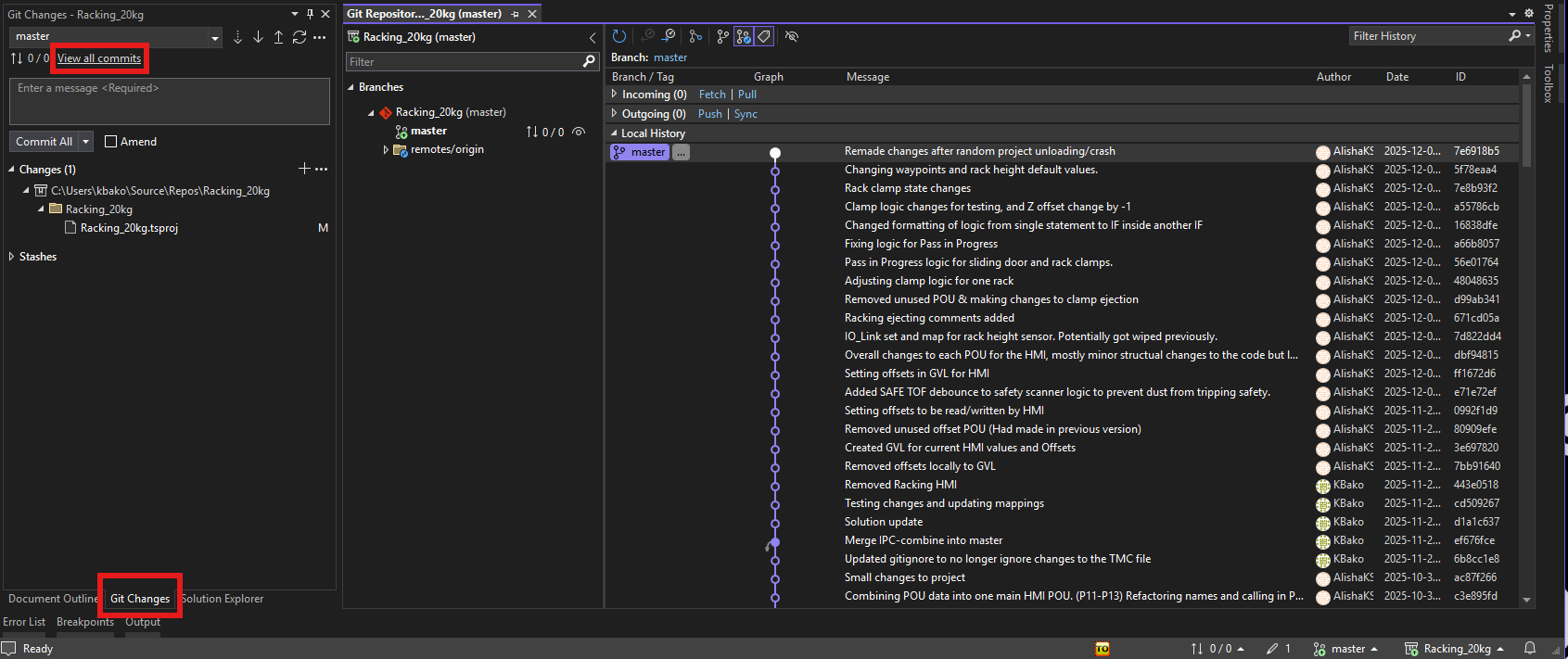
These windows are where the majority of the git work is done.
Opening a Repo
Upon launching TwinCAT, you can find your configured repos in the bottom right corner.
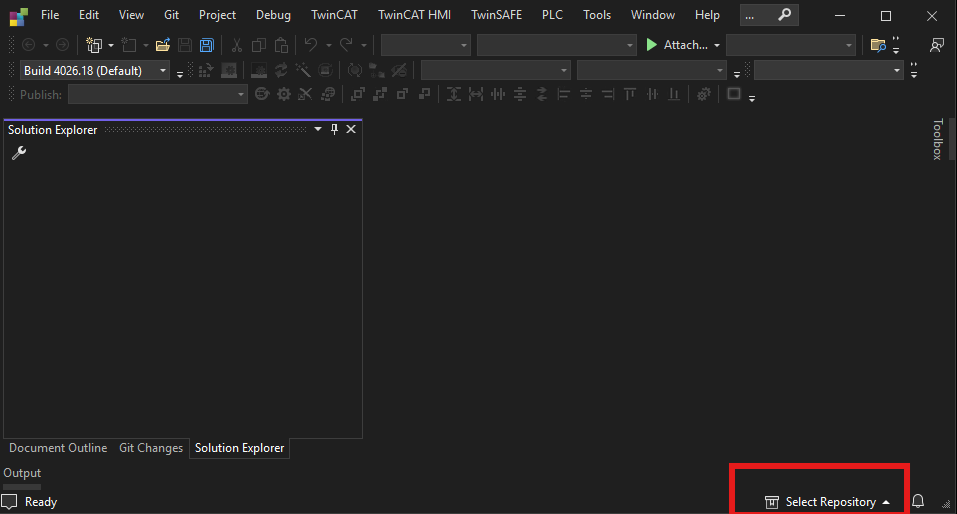
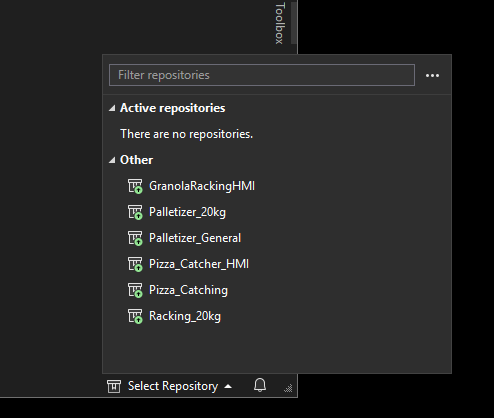
If your repo has only one Solution in it, that solution will automatically open, otherwise TwinCAT will ask you which Solution you wish to open.
Git Control
Commit
Under Git Changes press the "+" buttons next to the changed files to stage them.
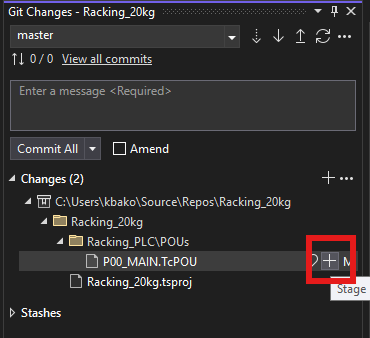
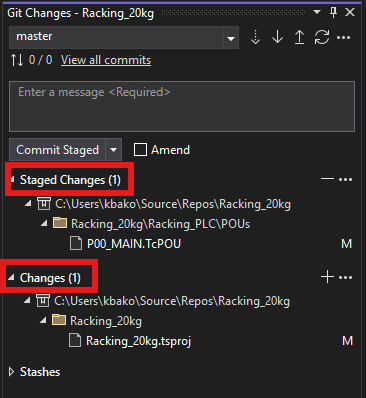
You can unstage a file by pressing the "-".
If you want to see what exact lines are changed, double click on the file. TcProjectCompare will launch.
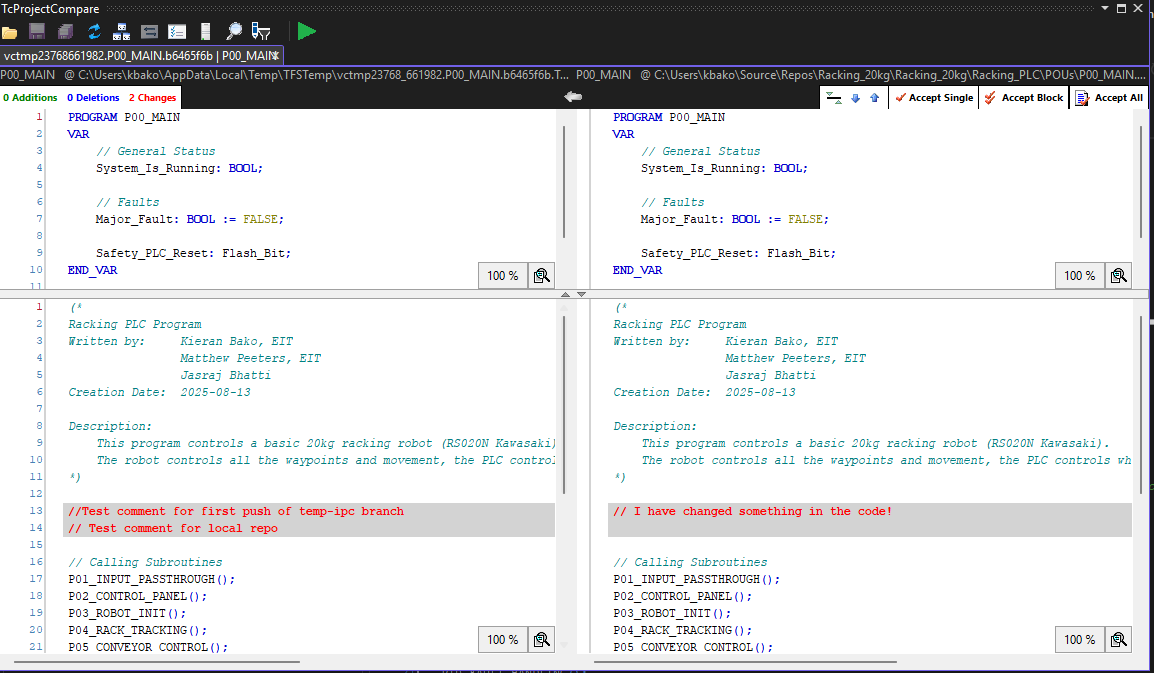
The RIGHT side is the new code that you have written, the LEFT is the old code. This is indicated by the grey arrow between the two panes at the top.
You do not need to accept anything at this time. This software also allows for merging. Simply close the window.
Add a suitable comment to the commit and press Commit Staged.
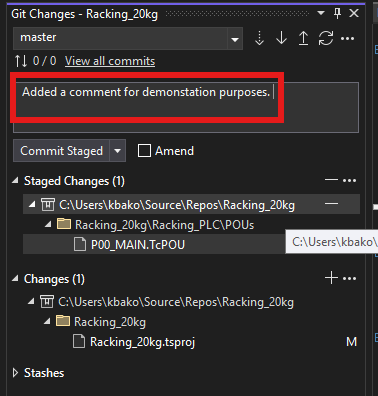
The committed files are removed from your Changes list and the commit is added to the history of your local repo as an Outgoing change.
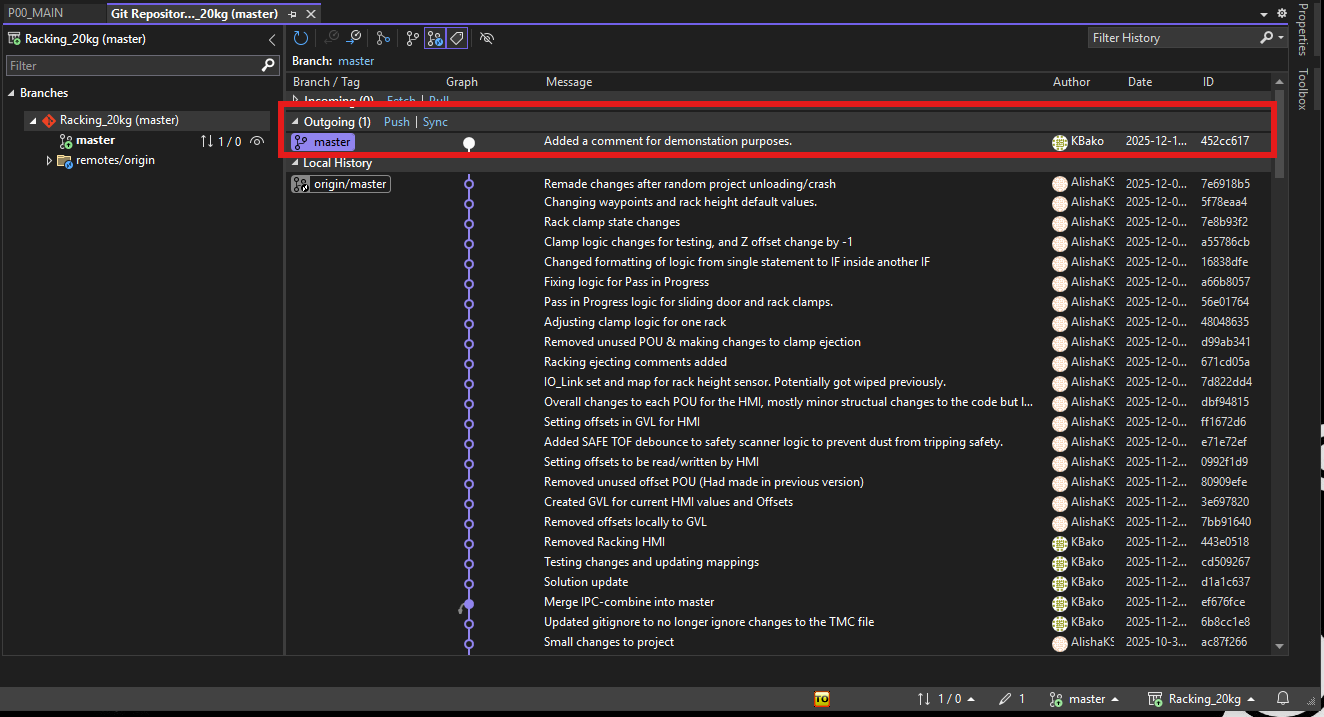
COMMIT SMALL! COMMIT OFTEN!
Unload
For the following actions, it is important that you UNLOAD your project before Fetching/Pulling/Pushing/etc.
ALWAYS unload your project before interacting with remote repos.