Creating and Updating Libraries
- Create a new TwinCAT PLC Project

- Add in a Standard PLC project
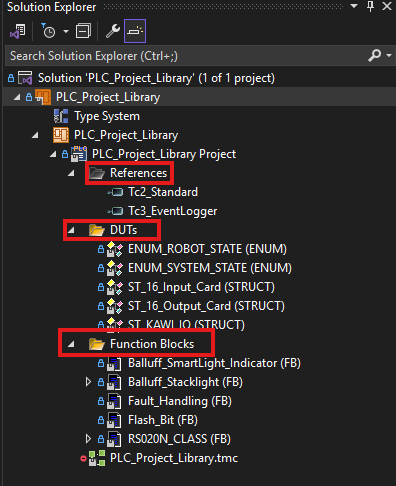
- Your project should only contain References, DUTs, and Function Blocks. Only add in files that will not be edited in future projects.

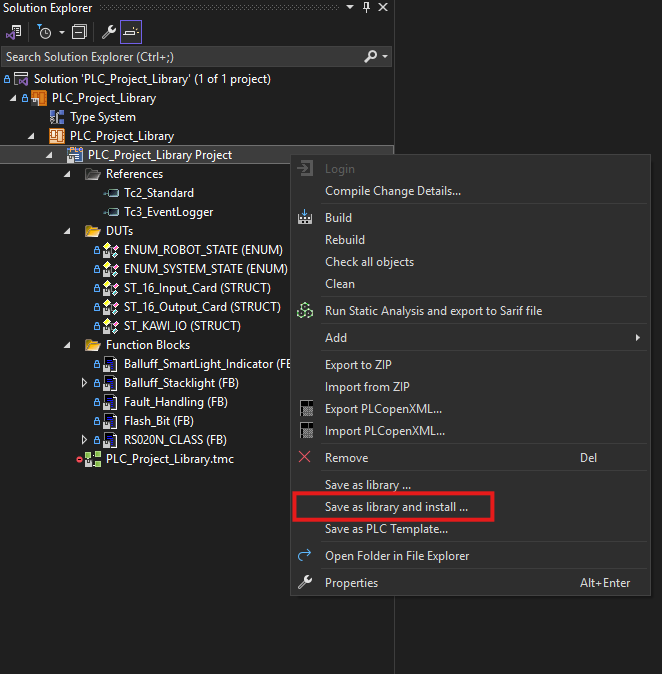
- Right click on the project and select 'save as library and install'
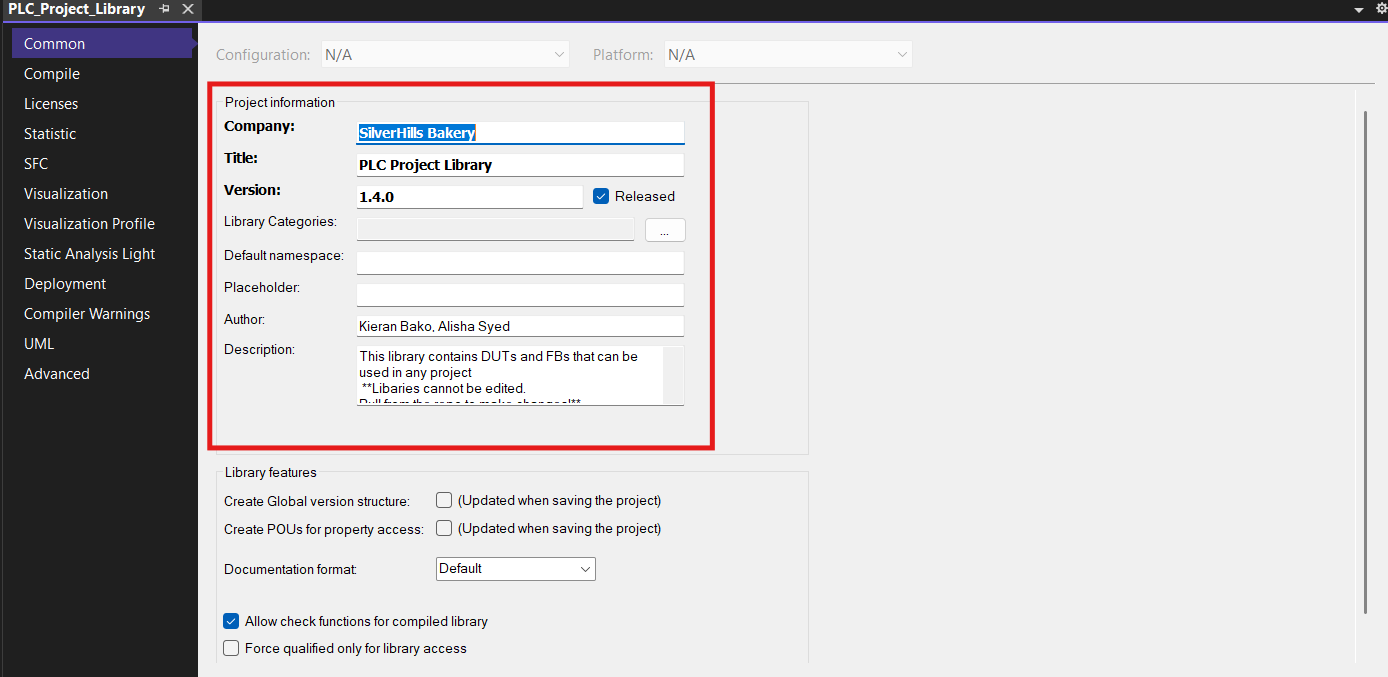
You'll be prompted to add the following information.
- Company Name (SilverHills Bakery)
- Version Number
- Note that version control is handled as such:
Example: Version: 1.2.0
1: Major version change that requires an update for the library to function correctly.
2: Minor changes to a single file that will require an update for the library to function correctly
0: Minor change to the project that does not require an update
- Note that version control is handled as such:
- Title
- A brief description of what the library is/does.
- Note: The description is optional but is very helpful when creating our own libraries.
Editing & Updating Versions
To edit the library make sure you have cloned the library repository from GitHub or have fetched and pulled any changes. Make the necessary changes following the same steps as updating any PLC project (saving, building, commit and push).
Right click on the PLC project and go to properties. Similar to saving a new library you will need to update the version number in the properties. Be sure to check the 'released' box as well.
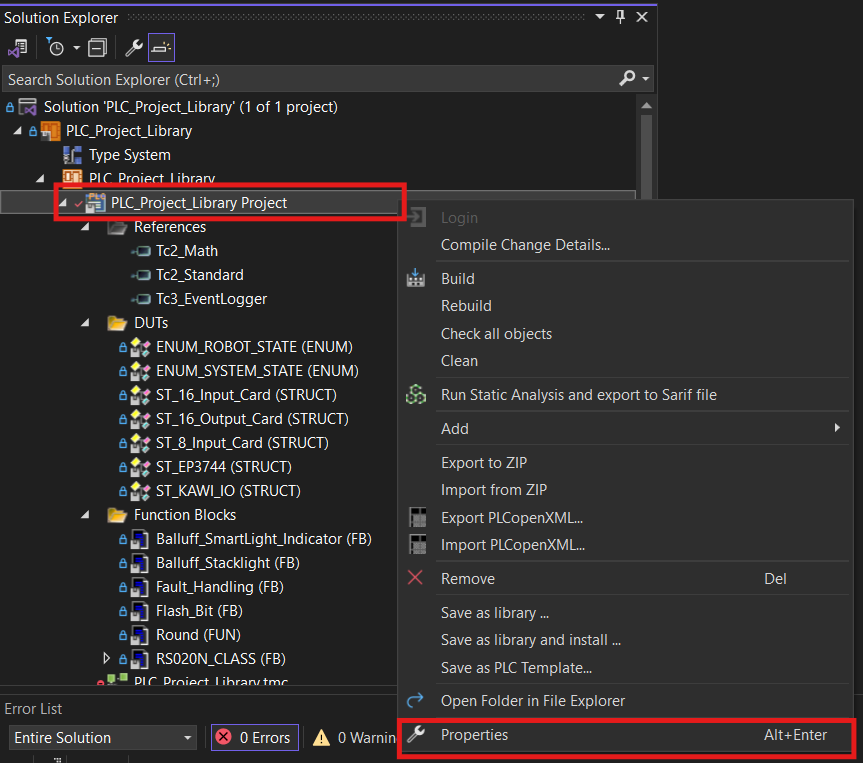
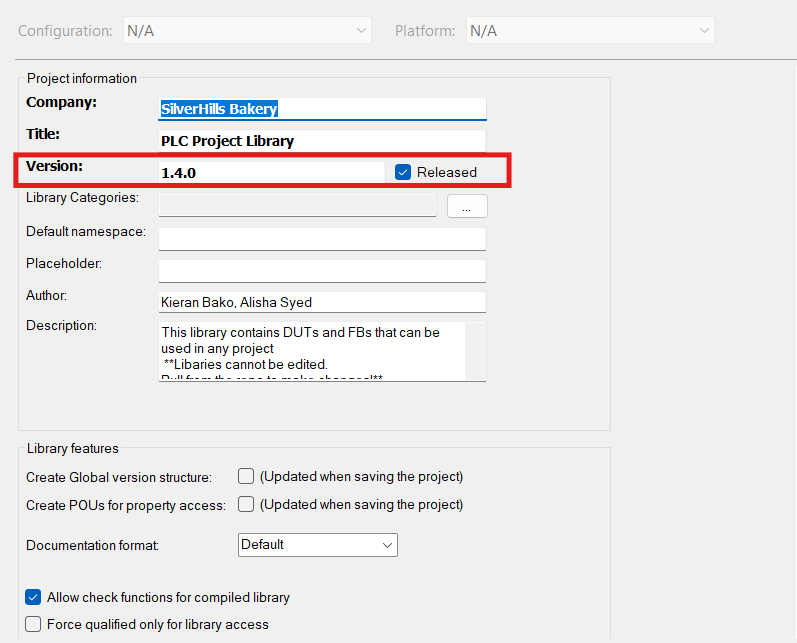
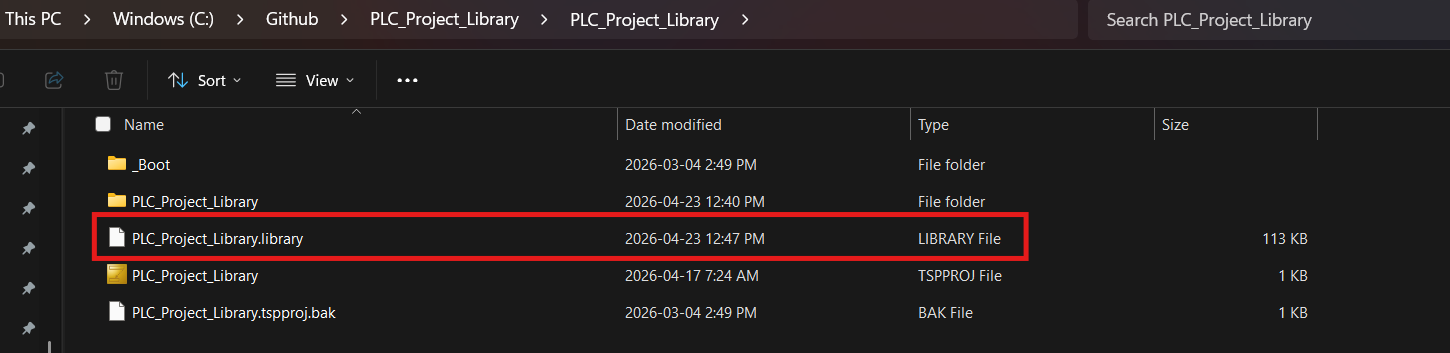
Save the file and once again right click on your PLC library project and 'Save as library and install' Make sure you're saving the .library file in the correct location.